Writing tools in the editor
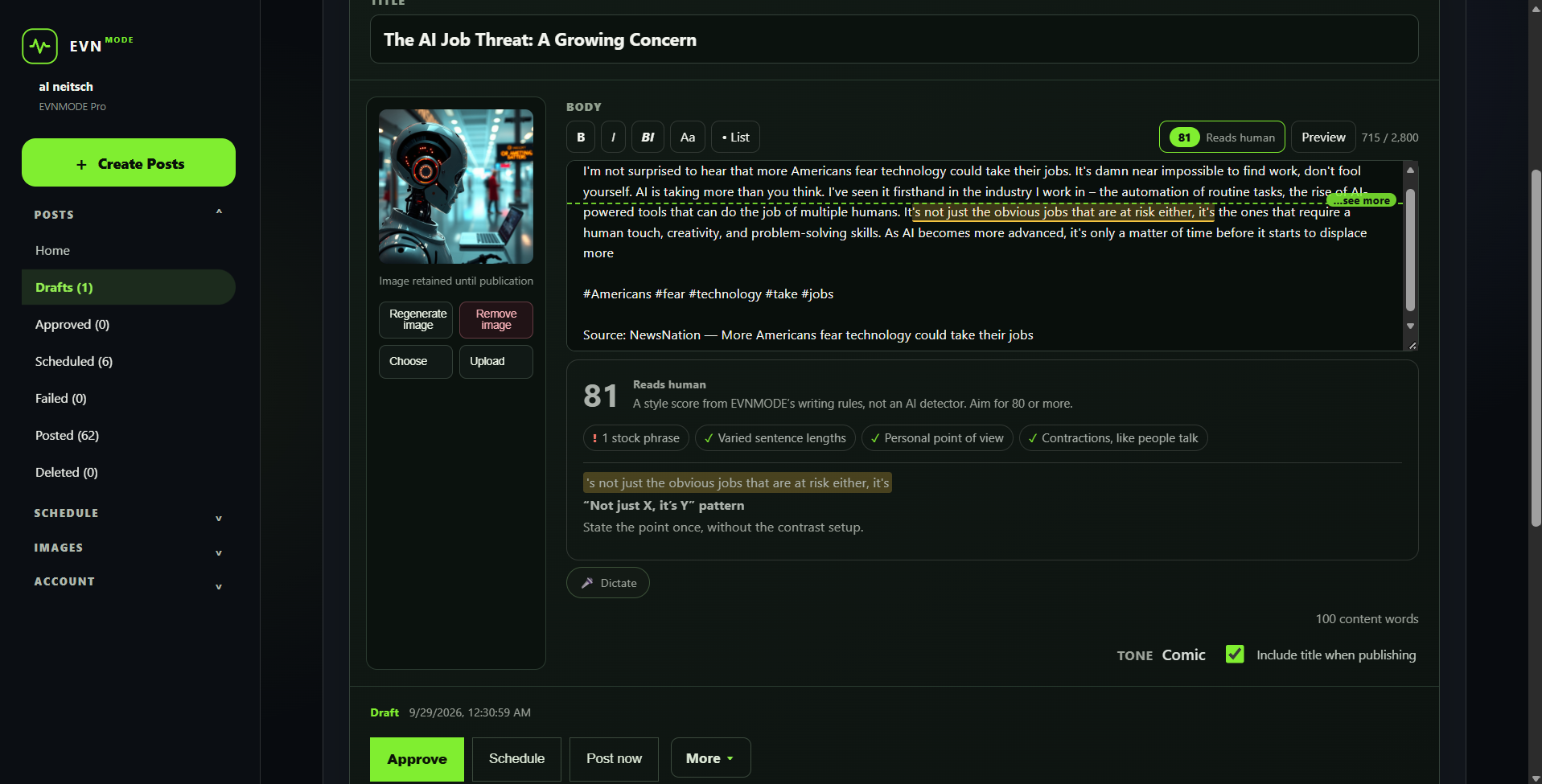
Formatting, a “see more” marker, a live preview, and a writing check with one-click fixes, right where you write.
See step 5 →EVNMODE in action
Follow one complete workflow—from teaching EVNMODE how you communicate to reviewing and scheduling a finished LinkedIn post.
New in EVNMODE
Formatting, a “see more” marker, a live preview, and a writing check with one-click fixes, right where you write.
See step 5 →A 0–100 style score that shows what makes a post sound natural, and what to change when it does not.
Start free with no card. Personal plans your month; Pro writes in your own voice. Both start with a 7-day free trial.
Compare plans →Talk into any writing box, and pick up news and trending topics kept fresh through the day.
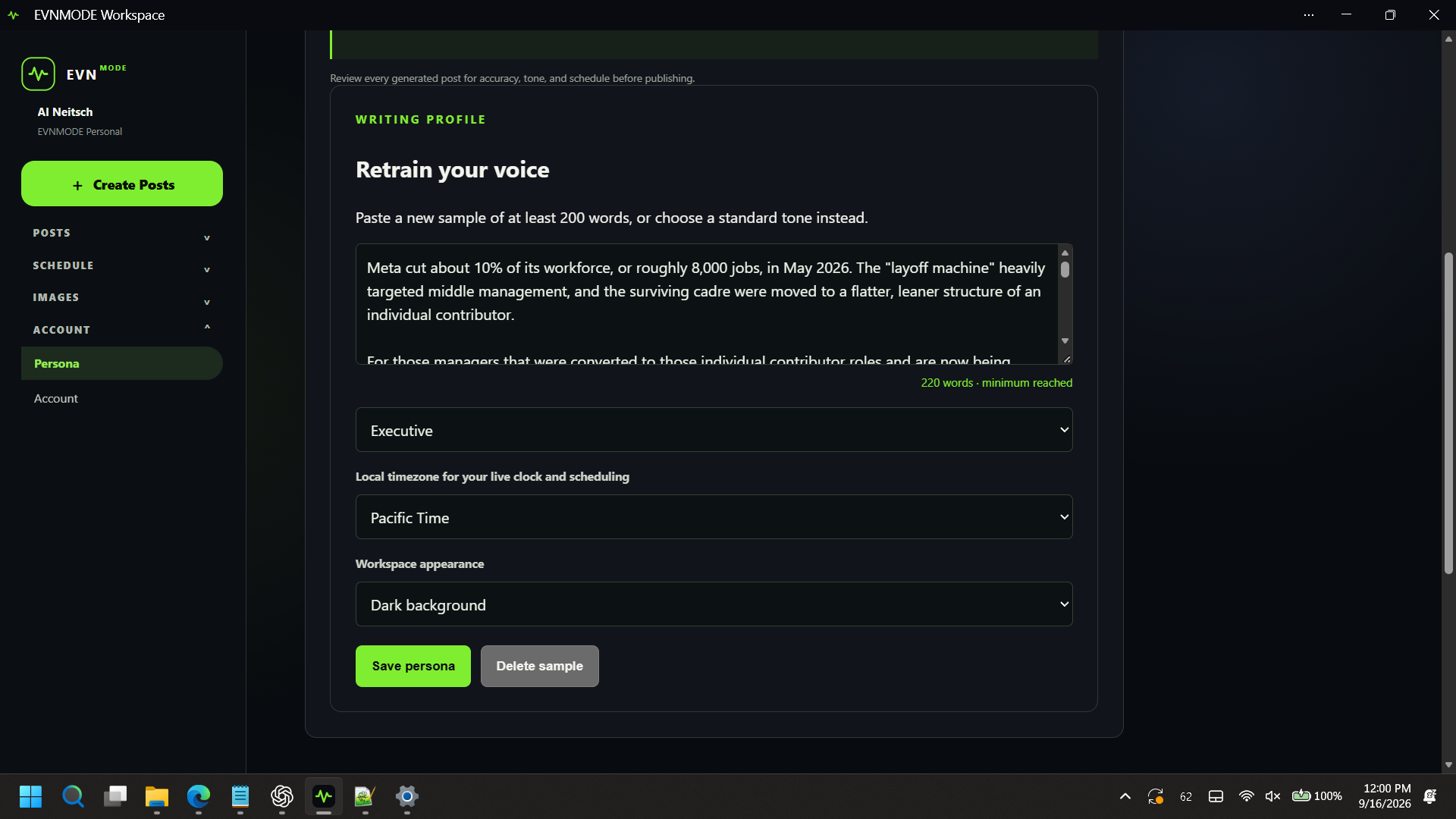
01 / Tune the voice
Provide a writing sample or choose a standard tone. EVNMODE uses that guidance to shape structure, vocabulary, and cadence while keeping you in control of the final wording.
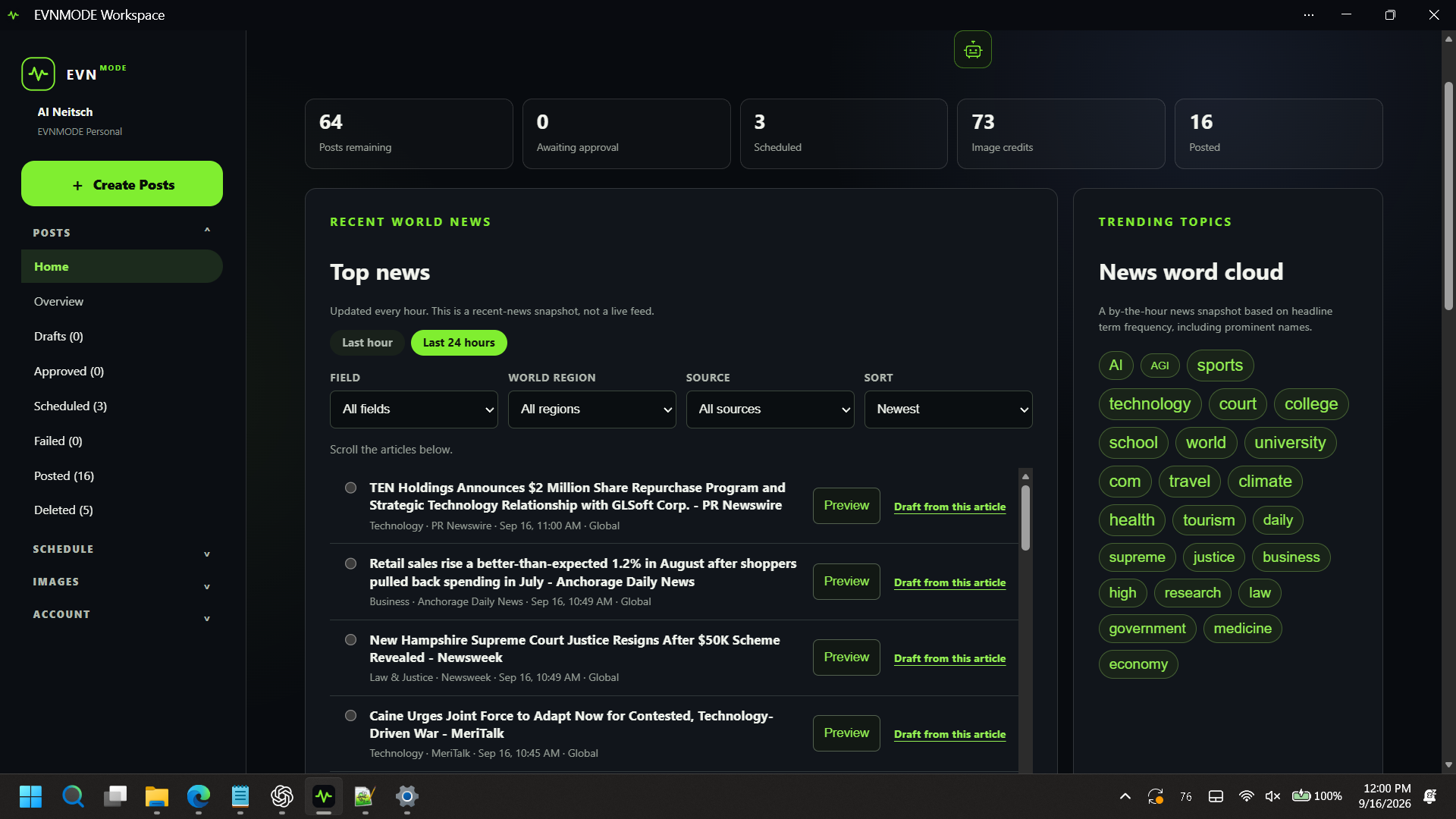
02 / Find the signal
The home workspace gathers recent stories across major categories, regions, and sources, kept fresh along with trending searches. Filter the feed, preview an article, or use the word cloud to spot themes gaining attention.
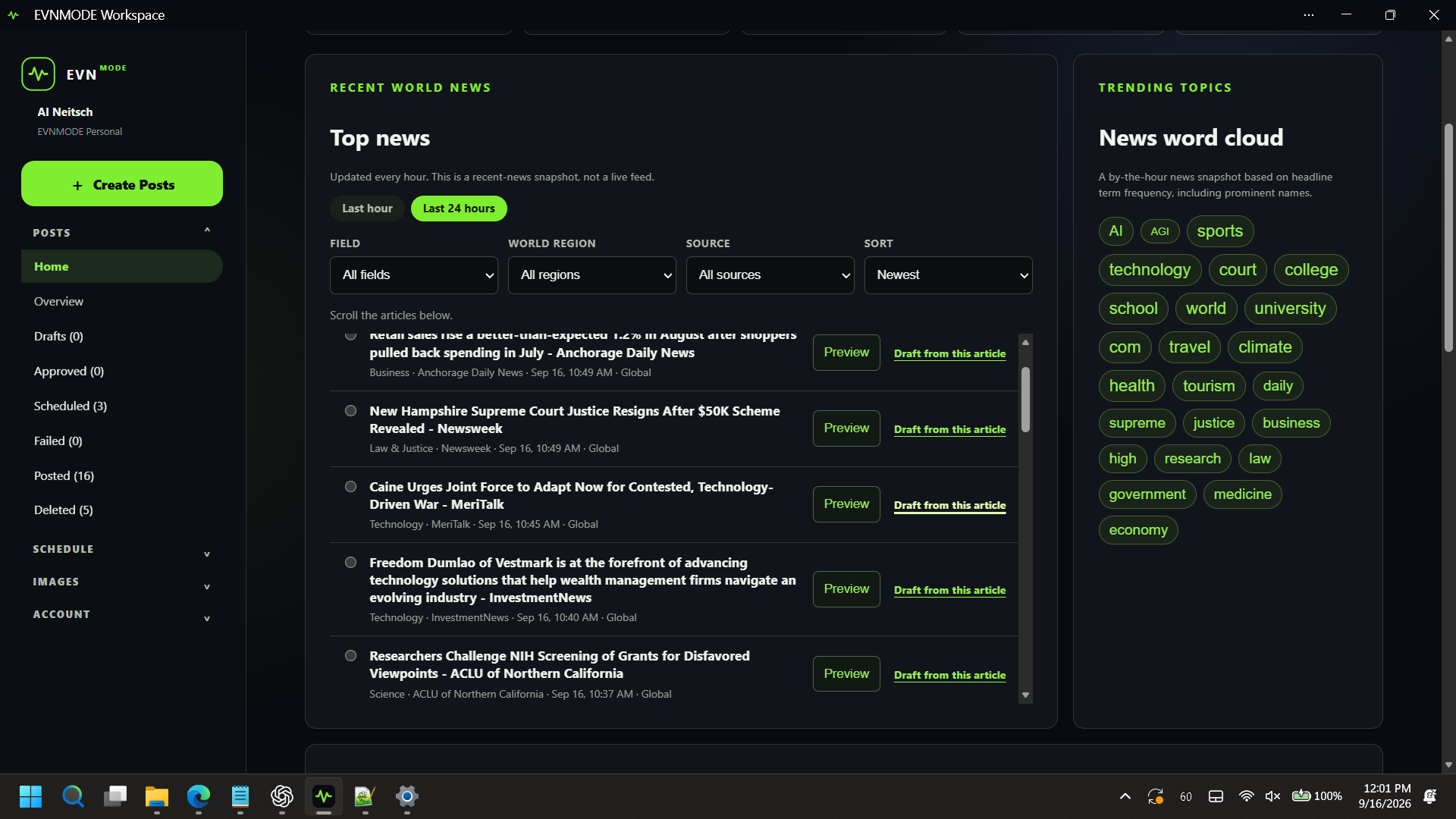
03 / Choose a perspective
Select Draft from this article beside a story that fits your expertise. EVNMODE carries the source context into the drafting screen so you can add direction instead of copying a headline.
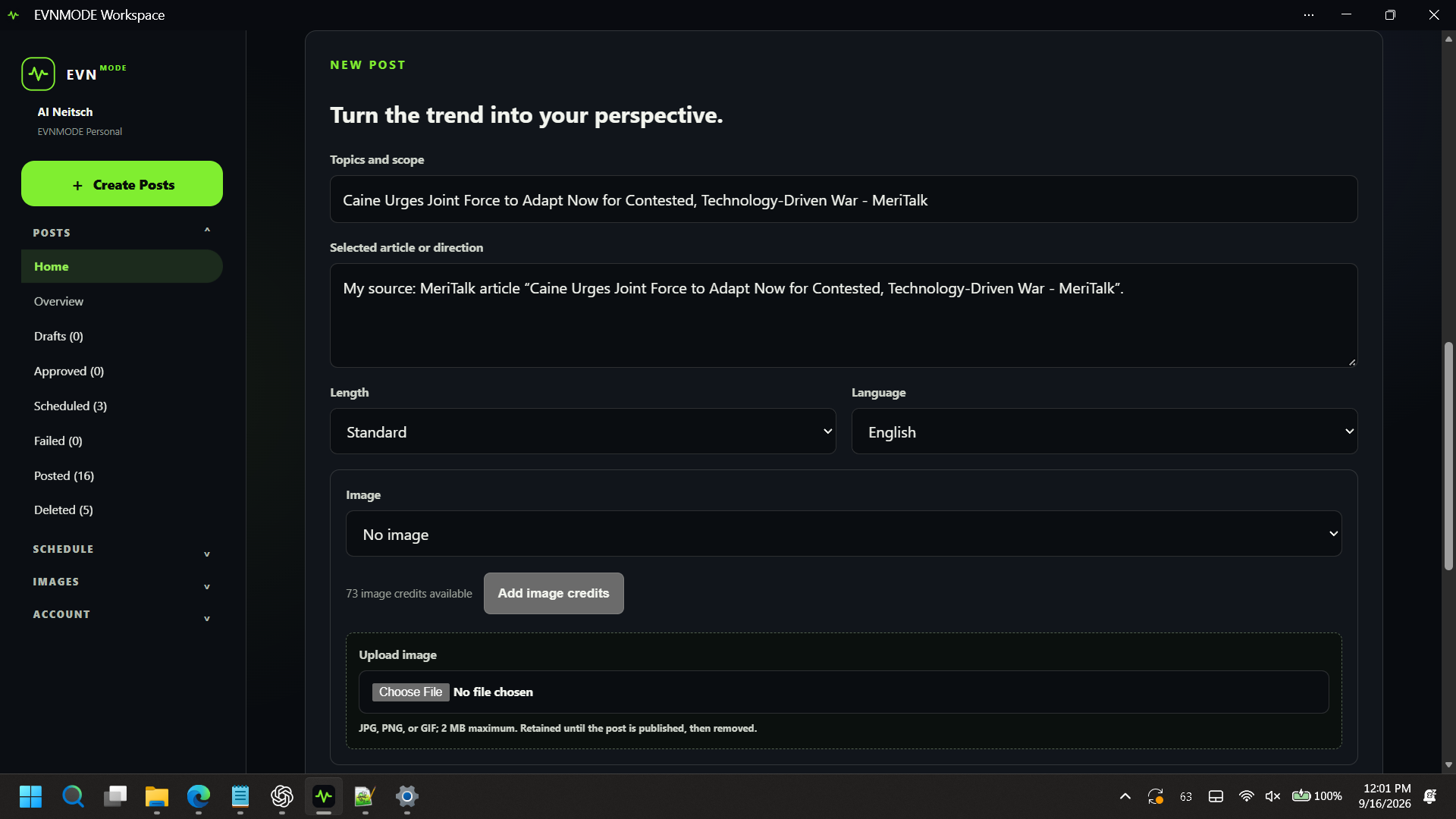
04 / Shape the request
Choose length and language, add your direction, and decide whether the post needs an image. You can use AI assistance for one or several drafts, or switch to I’ll write it myself.
05 / Review and refine
Every draft opens in an editor made for LinkedIn. Format with bold, italics, and bullets, see exactly where LinkedIn’s “…see more” cut falls, and check the writing as you go. Stock AI phrases are highlighted in the text, with plain-English fixes you can apply in one click, and a “Reads human” score shows how natural the post sounds.
The score rates writing style against EVNMODE’s writing rules. It is not an AI detector, and you still decide what is published.
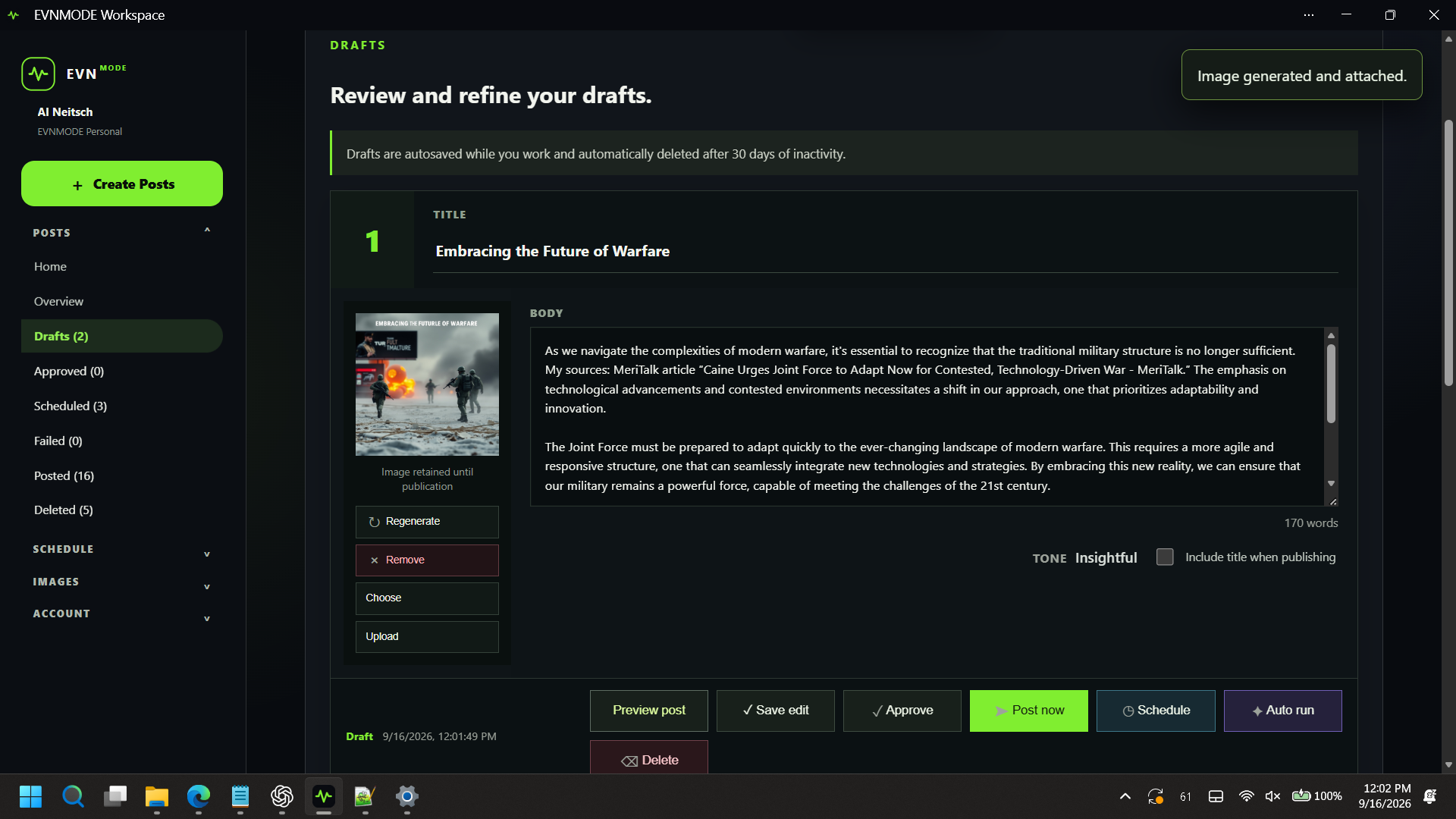
06 / Add a visual
Make a branded title card from your header, colors and font in one click, or upload your own picture. Either attaches directly to the selected post.
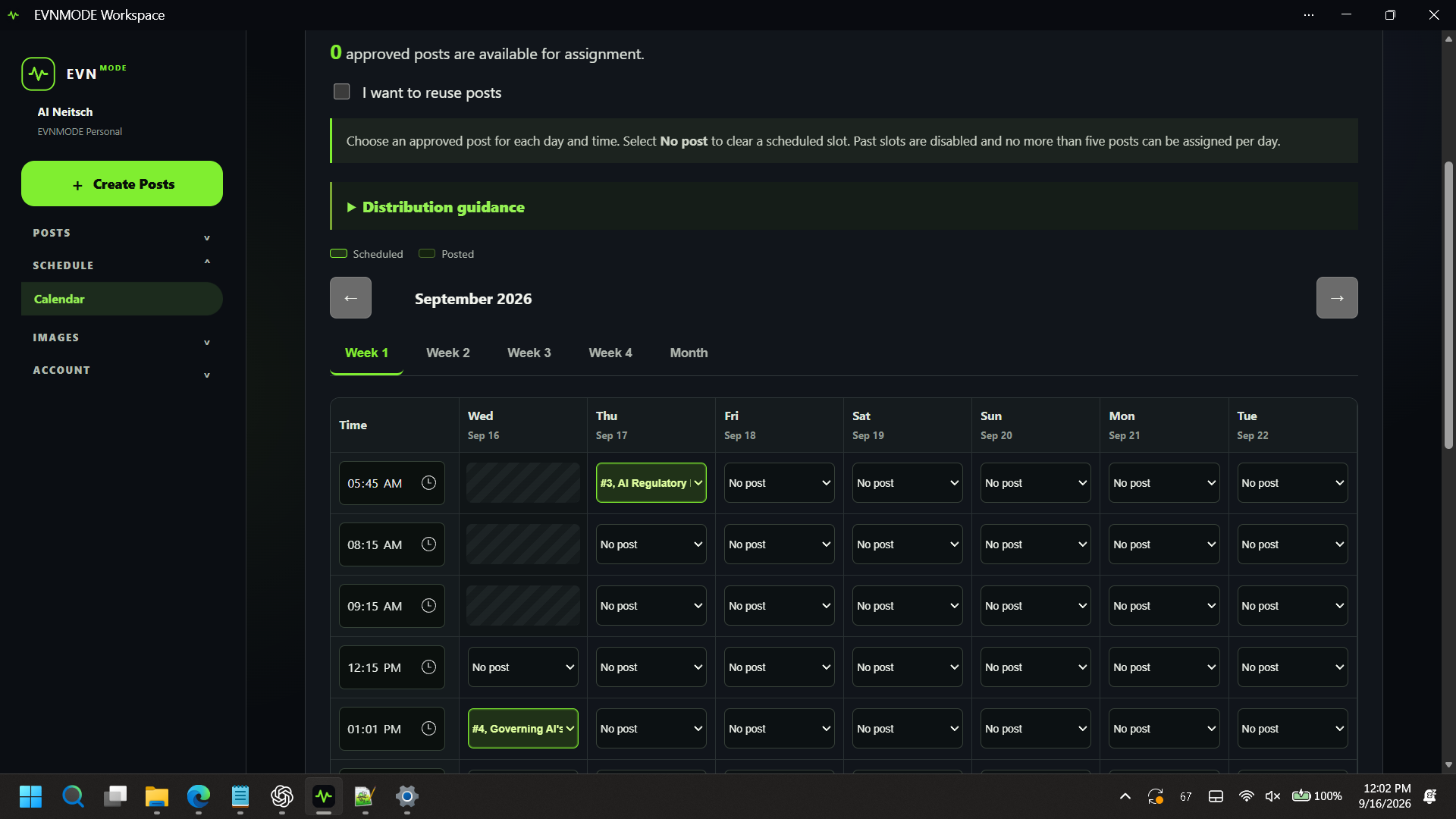
07 / Put it on the calendar
Assign approved posts to specific dates and times, review the weekly calendar, and adjust the suggested distribution windows. Scheduled posts remain visible and can be unscheduled if plans change.
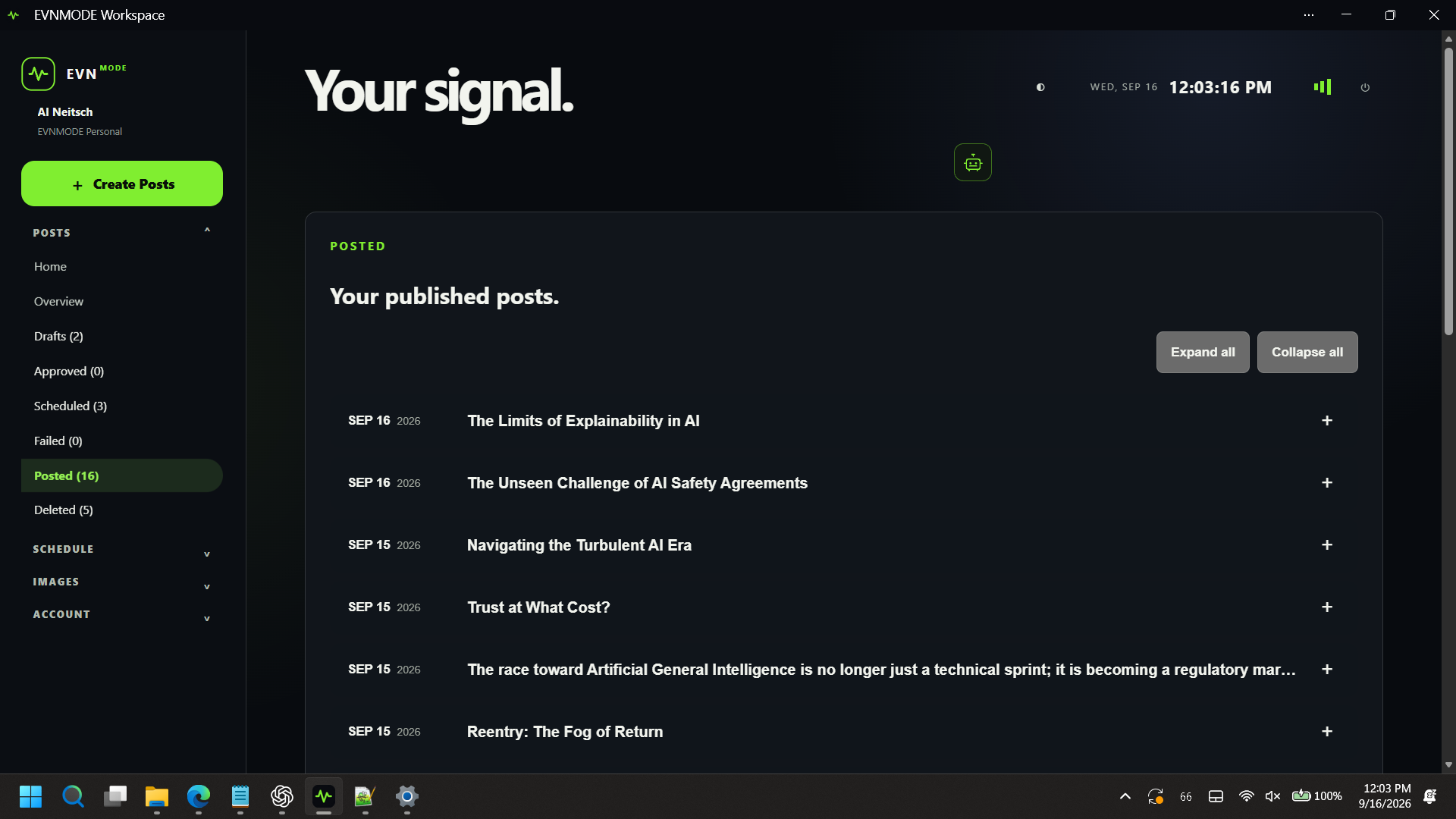
08 / Keep a clean history
The posted view presents a compact date-and-title history. Expand one post when you need the details, or expand and collapse the entire list for a broader review.
Ready to tune in?
Start free by signing in with LinkedIn, with no card needed. Upgrade to Personal or try Pro free for 7 days whenever you are ready.